If you have no sound on your Apple iPhone 3 / 3GS / 4 / 4S / 5 / 5S / 5C/ 6/ 6Plus/ iPhone 6s/ 6s Plus/ iPhone 7, 8, 8Plus and the iPhone X, iPhone Xs volume bar, it is unbelievably frustrating as you most probably already know.
I have been looking for cures over the web as there are many out there. Below you will find a list of all these including the one that worked for me. Also, this list is in chronological order of what seems to be most successful. It is a process of elimination but it has to be done.
The symptoms of iPhone no sound Problem/ Issues include:
– iPhone will ring but speaker will not work for anything else.
– iPhone no sound at all for calls, apps, music, etc
– iPhone no sound as stuck in headphone mode
Follow these steps and hopefully, your iPhone will be back to its prior glory.
iPhone No Sound – How To Fix & Tutorials 2020
Step 1 – Check Silent Mode Switch

Loud/ Silent switch on the exterior of the iPhone is switched to the silent mode which is orange. If so, flick the other way to loud mode. This is a step that so many people miss, but it is the simplest! Also once you have flicked the silent mode off, ensure your volume is turned up by pressing the volume buttons on the side.
Step 2 – Restart Your iPhone

To restart the iPhone, hold the power switch and home button together for 10 seconds. This will restart your iPhone, you will not lose any media, contacts, data, etc. If there is a temporary glitch on the iPhone this will eliminate that glitch. Also if there is a glitch this may help terminate a temporary glitch.
If you have an iPhone X or newer, you can simply restart the device by pressing and holding both the side button and one of the volume buttons. Once done, you’ll then be promoted to restart the iPhone. When off, click the side button to turn on again.
Step 3 – Reset iPhone Settings
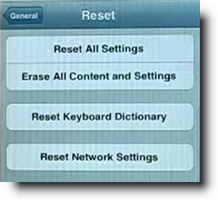
Reset iPhone. Go to Settings> General> Reset> Reset all settings. Make sure to backup your iPhone to the cloud / iTunes as this will wipe your media, music, and apps although photos will be left on the iPhone. This is a follow on to step 2 and another way you will be able to eliminate the glitch on the iPhone.
Step 4 – Press Corner Of iPhone

This one is a bit weird but it worked for me for a while and has worked successfully for other people. Squeeze the bottom right hand corner of the phone above where the speaker is.
The left Side is a mic, not a speaker, so don’t worry about that side. Hold that grip for about 20 seconds. This is done as the connector may be loose and had to be repositioned correctly. Yes, strange but most of these solutions are!
Step 5 – Clean Your iPhone

Use a tooth brush to clean the docking area where you charge your iPhone. With dirt, dust, grime, and so on it, may block the connectors working correctly and makes the phone think it is on a music dock. When you do this do it gently and get the bristles into there good.
Also if you use rubbing alcohol or acetone it will help get all the extra dirt out. As these products evaporate it will not do damage to the connectors. Do not use mineral terps when cleaning as it is oil based and will not dry!! This seems to be one of the most successful solutions. To avoid this happening in the future, its best to have a case that avoids dust and grime getting in.
Step 6 – Insert Headphones

Get your headphones and insert them into the headphone jack and then quickly pull them out. Continue this for a couple of minutes as sometimes it gets stuck in headphone mode so this normally undoes that. Also this may remove any dust or grime that may have been lodged in there.
You can also watch this video below which has a full list of fixes listed in this tutorial plus a few more that will restore sound to your iPhone!
Step 7 – Restore Your iPhone

Restore your iPhone on iTunes. Click on your iPhone icon when plugged into iTunes and go to restore. If you do this make sure your iPhone is backed up as YOU will loose all data, media, contacts, pics, and so on. This puts your iPhone back to factory settings.
This is similar to step 3 as it is a full reset of the device, this should help eliminate any glitch that have have come out in a recent update such as iOS7 or iOS8. Also when doing this step check for updates.
Step 8 – Jailbreak iPhone
Jailbreak your iPhone to find the file directories that are causing the fault. By doing this you are deleting the file that is making the iPhone think it is on a dock. You will still be able to use a music docking station etc. If you have a jail broken iPhone or willing to do it then this will be the best option for you. Very simple video and easy to follow, to jailbreak follow my simple tutorial.
Step 9 – Dry iPhone

This worked for me!! The squeezing step worked for me for a small amount of time. Not much else worked so thought I would try my own cure…. An old hair dryer!! Turn on low heat and hover over the speaker outlet for about 5 minutes.
I also did the headphone jack as well. There must of been some residual moisture build up which the hair dryer eliminated. The speaker was sputtering on and off during this time but finally came to life :). If you don’t have a hair dryer, you can also put your iPhone in dry rice while turned off. This can suck up all that unwanted moisture. Best to leave in rice for at lease 12 hours.
Step 10 – Hardware Problem

It may be a hardware problem and simply need to get a replacement through your provider who may offer insurance if chosen or apple support. This no sound and speaker is getting more known know by Apple there is a good chance you may get a replacement or a hardware fix.
Step 11 – Ultimate Destruction
If iPhone still has no sound there is always ultimate elimination… Not endorsed. See below….
**** UPDATE **** 18/03/20
Thank you everyone for such an overwhelming response! Also to those that have put up there own solutions that have worked for there iPhones. Initially when I created this website I did not envision the large response of people with the same issues. So here are some new solutions and steps that are popular on the comment feed.
iPhone No Sound Solution Step 12

As dirt and grime like to build up in the charging connectors of the iPhone it is necessary to clean it out. Similar to the step with cleaning it with a toothbrush you will be using compressed air instead. The best and easiest way you can do this is to blow air out your mouth with a good force into where the iPhone would get charged.
Do this for 1 minute to insure that it removes any dust or dirt particles. After that, plug and unplug your charger into the slot about 5-10 times.
iPhone No Sound Solution Step 13

This is similar to the step above but you will be cleaning out the headphone jack on the iPhone instead of the charging connectors. As above blow into the headphone jack for about 30 seconds to 1 minute, this should vanish any dust or dirt that is lodged in there.
Once that is done insert a ear bud/ q tip into the headphone jack and twist for about 30 seconds. That should dislodge any other dirt or grime that the blowing process may have missed.
If your iPhone X is not turning on, then you should check out my full guide here.
iPhone No Sound Solution Step 14

There have been more than a dozen comments saying that bluetooth may be interfering with the sound on the iPhone. One good method is to insure that your iPhone is not connected to any bluetooth device as it may be playing sound thru that device. Also another successful step that has been recommended is to turn off bluetooth and then turn on again.
iPhone Has No Sound Step 15
As a continuation to step 5, there have also been several reports of people who have also cleaned their iPhone with a wooden toothpick.
While a toothbrush works quite well, there is typically quite a lot of dirt still stuck in the charing port which can only be gotten out with a pointy object. Just be careful not todo any damage to your iPhone charge port. This seems to work well with older iPhone 4 and also the new iPhone 8 and iPhone X.
These are just some of the steps I have found and come up with which have shown success for iPhones with no sound.
Olga says
Had my IPhone in a back pocket under the rain and the sound stopped working after. Used the blowdryer method. It worked! Thank you!
john smith says
FixMyApple.co.uk – We Sell and Repair Apple iPhone 4s, 4, 3gs, 3g, 2g Screen, Glass, LCD at affordable and reliable prices,fix my appple is London Based iPhone screen repair specialists.
Mary Novak says
Thank you for your great article. It resolved my frustrating problem with my Iphone not having any sounds. It saved me from going into the Verizon store and having to wait a long time to get assistance.
anuj says
you Rock… My phone fell and after that it became mute.
Can believe but that hold the left side for 20 seconds worked for me!! AmazinGG!!!!!
Mazi says
No 4 works perfect
Michelle says
Wow, this worked!!!!! Great fix, thanks so much 🙂
Jennifer S says
OMG!!!! For MONTHS I’ve been dealing with this SUPER-frustrating issue. I tried every step and finally the blow dryer worked for me. I’ve read countless sites, watched video after video, had my phone diagnosed at the apple store – they told me I had a data board in my phone that prevented the sound from apps to come through on my phone but that there was no hardware issue because the phone still rang – all I needed to do was restore the phone to factory settings – did that – NEITHER DOING THAT OR ANY OF THE OTHER FRUSTRATING THINGS I FOUND ONLINE WORKED. UGH! How aggravating. THANK YOU for this article and making things so simple. YOU ARE NOTHING SHORT OF AMAZING!!!!
fabrizio says
Step 5 worked for me!!!! it saved my iPhone!!!! thank you so much
Jennifer S says
Hi there, me again!
Well, about two hours after I wrote that super-awesome review, my phone went back to what has become its normal self. No sound for any apps (videos, music, games, etc); except now it’s worse. I am no longer receiving sounds for phone calls or text messages. Of course, I don’t think any of your methods messed up my phone any further. I was truly grateful for the two/three hours of sound I was able to enjoy that day. I guess I have to get a new iPhone. =o( Not really looking forward to spending the $$ when I already spent the $$ for a quality phone and didn’t get one. I’ll call Apple Care first but when I tried to contact them online, I was informed that I had no warranty on my phone. I only purchased it last September. Super-sad right now but wanted to let you know that my fix was temporary… but, like I said, I was grateful for any fix at all.
Tony says
OMG – step 4 actually worked! My clicking sounds are back just by pressing down for 20 seconds in the lower right hand corner of the phone (above the speaker) just as shown in the picture. I tried other things first, but, glad I found this solution here. Thanks so much!
Frank says
Yup the iapd.plist must be deleted and all should work. I used IFile no need for a computer since my phone is already jailbreaken. But you can also use I explorer as in the video. This goes on to show that apple’s is full of shit for a common problem.
Ricardo says
if sound is out for apps, but ok otherwise, the toothbrush with rubbing alcohol will fix it. it did it for me
Clara says
Thank you sooo very much!
Madison says
Step 4 actually worked!! Thank you so much!
Nav says
My iphone 4s problem was such that while playing songs etc , no sound was comming through mobile speakers neither it can be controlled through volume keys, and no volume bar appeared (also mobile was not in silent mode), however as soon as i connect headphone, sound came through headphone speakers and can be controlled through volume keys.
My problem solved through combination of two steps.
1) after swithing mobile off, i cleaned the docking area with help of brush . I used perfume , done few spray on brush threads then cleaned docking area for about two minutes. Then i let it to dry for about 3 minutes.
)
RIGHT !!! I had to go turn ON Assistive Touch and Check it that mute is shown as depicted below
Here are the steps again if you need them:
1. Go to…Settings->General->Accessibility->AssistiveTouch
2. Turn ON AssistiveTouch – an icon dot will appear on the screen
3. Touch the icon
4. Touch Device
5. Check its mute written ( here mute mean volume on and unmute means volume off)
Now open any music file and play with volume keys and with icon dot volume and now my mobile working fine.
Nav says
Nav = naveed
COD says
Thanks so much, no.4 worked for me too!
Goran says
After many months of having this issue of intermittent no sound mainly playback music videos YouTube
Ect . I got a sewing needle and cleaned out the docking port found a surprising amount of lint and dirt after removing debris I cleaned it using electrical contact cleaner this seemed to improve the concern dramatically but Issue came back a few weeks later after more investigation with the iPhone 4s sound not working I ran a sewing needle across the docking port pins and magically the sound would come back so suspected a faulty docking port causing the issue . So I purchased the docking port,repair tools ,Battery since it would hold charge for only half a day , replaced the components found this has rectified the concern at a cost of 10 buck off of eBay and half an hour of my time,got quoted 150 bucks at Apple
Bang says
Hi,
Thanks you so much,
Step 3 worked like charm for me!
Cheers
Regards
Bang
Rejoreji says
Tq my problum jest solved.
It was the screw under the I phone am jest screwed it
Lucky says
Man oh effin man I precite it. Only had my 5s for about a week slipped out my hands and I lost sound. Instead of squeezing it I thumped the bottom left and right side a few times a
Thank god says
The hair dryer one didn’t work for me. I did the q-tip one and realised it’s a lil damp after taking it out. And I decided to just stuck the q-tip in for a couple of minutes and now I’m typing with sound out from my speakers!
Peter says
Hair dryer worked. Thanks so much!!
Graziela says
AMAZING!!!!
I have the same problem with my iPhone 4s
I did solutions from no. 1 to 6. after an hour of doing the steps, my iphone has still no sounds….
until I finally noticed the day after that step no. 4 was the solution. I realized maybe bcoz my phone has been fell down so many times.. It’s not permanent solution coz once in a while the problem still occur, I just repeatedly do step 4…
Hope this will be permanent solution after doing many times…Thank you again!
Kate says
Success with No. 3 – thank you! Bookmarking this page for future reference as soooo helpful! 🙂
MichaelG says
The compressed air did it for me. Thanks!
Emmy says
Oh my god you have just saved my phone yay!
marc64 says
ok, this worked for me after practically pulling my hair out, after trying 99% of all the solutions on the web i finaly got all my sounds back,(1st make sure the side mute button is not showing orange!), then go to settings, Click on the following, General, click Accessibility, scroll down until you see Assistive touch, click on that, that will open a small on screen black-button, (i think for disabled people not sure) when it appearers click/tap the on the black onscreen button and it will expand into an on screen type black box with the voice, Favourites, Device, Home buttons, click on “Device” that will take you to another 6 expanded on-screen buttons, one of them is a picture of a Bell, touch/tap the bell picture and it will then show a bell with a line through it, that should then be un-muted, when you have the line showing you should get your sounds to work again, to get rid of the black box go back to settings, click on disable assistive touch to remove the black-box from your screen,
Nb,
If you run your battery down or switch your phone off and your sounds have gone again repeat the process to get your sounds to work, hope this gets some phones with sound issues to work again, it did for me after updating loosing my sounds way back to ios6.3 update, only thing i cant seem to get back to working is the side + and – volume buttons, just can not get them working although if you look you can access them in the Assistive touch black box menu i already mentioned, Good luck,
K L says
After MONTHS of thinking it was a glitch from one of the updates, I read this article and my sound problems are SOLVED!!!
Hair blower worked. I had a song on with no sound and as the hair blower started to dry out the headphone socket – i heard some sound, but it didn’t last. I did the speaker area and all is good! Thank you so much!
Shoaib says
Wow….it works. Using nail polish remover and cleaning the Dock of Head phone with ear bus. Also using hair dryer. Alhamdulillah it works with in 5 mins. Thanks alot. ..!!!!!!!
window air conditioning says
Superb weblog listed here! Additionally your web-site a great deal in place rapid! Just what exactly service provider are you currently the application of? May i buy your affiliate marketer url on your coordinator? We motivation this site filled as quickly because yours haha
Tone says
step 4 worked for my ipod 4g .. thanks
Jennifer S says
Hi there! Me again… for the 3rd time. My phone works fine now. I have no idea what the heck did the trick. Obviously, your blow dry method brought it back from the dead. When it reverted to its old ways shortly after, I had just given up. Then, I started noticing that the sound would work only when it is plugged in charging. So, I was forced to keep it charging if I wanted to enjoy my apps. Now, it works without having to have the charger. So odd. Like I said before, I’m grateful for all of your help!!
Harry Pullens says
After trying al the methods (frustrating), Just fixed it myself…..
Combination of earphones and audio settings !
(Dis)connect earphones after switch a couple of times of audio output (loudspeaker / earphones) !
So goodluck APPLE with these…..
Donation at harry.pullens@gmail.com 😎
Mark H says
After varying degrees of temporary success with all the solutions above, I have finally found one that works for me. I have just bought a Mophie charging case for my iphone4s. The phone clearly now thinks it is permanently docked and all the keyclicks, swipe sounds, music, YouTube video sounds etc. are working perfectly from the phone’s speaker. The volume adjust buttons work too, plus I have double the battery life and the phone is protected. Just need to get the damn bluetooth working now!
David says
Step 5 did it!
Krystal says
Wew!!! Have tried the toothbrush, hair dryer alcohol, restart, reset and the earphones and ear buds truck. Only the cotton bud trick does the trick!!! Super thank you!!!!! This is really helpful.
Lizzie says
Thanks so much. I have seen different solutions here and there but this was laid out nicely to follow along each one to try. I tried a combo and all of a sudden I pulled out the headphones and ta-da it worked. Thanks so much. I have bookmarked this page just in case 😉
Greg says
after several attempts at most of the listed solutions I tried #5 with an alcohol wipe. It worked! Yaaaaay!
Elizabeth says
Thank you so much for this!!!! I just got a new iPhone as a gift for Mother’s Day.. did an update & proof no more sound!!!?? BUT step #4 worked like a charm, & on the first try!!!!