If you have no sound on your Apple iPhone 3 / 3GS / 4 / 4S / 5 / 5S / 5C/ 6/ 6Plus/ iPhone 6s/ 6s Plus/ iPhone 7, 8, 8Plus and the iPhone X, iPhone Xs volume bar, it is unbelievably frustrating as you most probably already know.
I have been looking for cures over the web as there are many out there. Below you will find a list of all these including the one that worked for me. Also, this list is in chronological order of what seems to be most successful. It is a process of elimination but it has to be done.
The symptoms of iPhone no sound Problem/ Issues include:
– iPhone will ring but speaker will not work for anything else.
– iPhone no sound at all for calls, apps, music, etc
– iPhone no sound as stuck in headphone mode
Follow these steps and hopefully, your iPhone will be back to its prior glory.
iPhone No Sound – How To Fix & Tutorials 2020
Step 1 – Check Silent Mode Switch

Loud/ Silent switch on the exterior of the iPhone is switched to the silent mode which is orange. If so, flick the other way to loud mode. This is a step that so many people miss, but it is the simplest! Also once you have flicked the silent mode off, ensure your volume is turned up by pressing the volume buttons on the side.
Step 2 – Restart Your iPhone

To restart the iPhone, hold the power switch and home button together for 10 seconds. This will restart your iPhone, you will not lose any media, contacts, data, etc. If there is a temporary glitch on the iPhone this will eliminate that glitch. Also if there is a glitch this may help terminate a temporary glitch.
If you have an iPhone X or newer, you can simply restart the device by pressing and holding both the side button and one of the volume buttons. Once done, you’ll then be promoted to restart the iPhone. When off, click the side button to turn on again.
Step 3 – Reset iPhone Settings
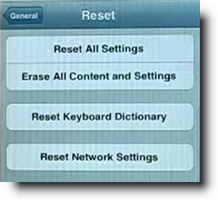
Reset iPhone. Go to Settings> General> Reset> Reset all settings. Make sure to backup your iPhone to the cloud / iTunes as this will wipe your media, music, and apps although photos will be left on the iPhone. This is a follow on to step 2 and another way you will be able to eliminate the glitch on the iPhone.
Step 4 – Press Corner Of iPhone

This one is a bit weird but it worked for me for a while and has worked successfully for other people. Squeeze the bottom right hand corner of the phone above where the speaker is.
The left Side is a mic, not a speaker, so don’t worry about that side. Hold that grip for about 20 seconds. This is done as the connector may be loose and had to be repositioned correctly. Yes, strange but most of these solutions are!
Step 5 – Clean Your iPhone

Use a tooth brush to clean the docking area where you charge your iPhone. With dirt, dust, grime, and so on it, may block the connectors working correctly and makes the phone think it is on a music dock. When you do this do it gently and get the bristles into there good.
Also if you use rubbing alcohol or acetone it will help get all the extra dirt out. As these products evaporate it will not do damage to the connectors. Do not use mineral terps when cleaning as it is oil based and will not dry!! This seems to be one of the most successful solutions. To avoid this happening in the future, its best to have a case that avoids dust and grime getting in.
Step 6 – Insert Headphones

Get your headphones and insert them into the headphone jack and then quickly pull them out. Continue this for a couple of minutes as sometimes it gets stuck in headphone mode so this normally undoes that. Also this may remove any dust or grime that may have been lodged in there.
You can also watch this video below which has a full list of fixes listed in this tutorial plus a few more that will restore sound to your iPhone!
Step 7 – Restore Your iPhone

Restore your iPhone on iTunes. Click on your iPhone icon when plugged into iTunes and go to restore. If you do this make sure your iPhone is backed up as YOU will loose all data, media, contacts, pics, and so on. This puts your iPhone back to factory settings.
This is similar to step 3 as it is a full reset of the device, this should help eliminate any glitch that have have come out in a recent update such as iOS7 or iOS8. Also when doing this step check for updates.
Step 8 – Jailbreak iPhone
Jailbreak your iPhone to find the file directories that are causing the fault. By doing this you are deleting the file that is making the iPhone think it is on a dock. You will still be able to use a music docking station etc. If you have a jail broken iPhone or willing to do it then this will be the best option for you. Very simple video and easy to follow, to jailbreak follow my simple tutorial.
Step 9 – Dry iPhone

This worked for me!! The squeezing step worked for me for a small amount of time. Not much else worked so thought I would try my own cure…. An old hair dryer!! Turn on low heat and hover over the speaker outlet for about 5 minutes.
I also did the headphone jack as well. There must of been some residual moisture build up which the hair dryer eliminated. The speaker was sputtering on and off during this time but finally came to life :). If you don’t have a hair dryer, you can also put your iPhone in dry rice while turned off. This can suck up all that unwanted moisture. Best to leave in rice for at lease 12 hours.
Step 10 – Hardware Problem

It may be a hardware problem and simply need to get a replacement through your provider who may offer insurance if chosen or apple support. This no sound and speaker is getting more known know by Apple there is a good chance you may get a replacement or a hardware fix.
Step 11 – Ultimate Destruction
If iPhone still has no sound there is always ultimate elimination… Not endorsed. See below….
**** UPDATE **** 18/03/20
Thank you everyone for such an overwhelming response! Also to those that have put up there own solutions that have worked for there iPhones. Initially when I created this website I did not envision the large response of people with the same issues. So here are some new solutions and steps that are popular on the comment feed.
iPhone No Sound Solution Step 12

As dirt and grime like to build up in the charging connectors of the iPhone it is necessary to clean it out. Similar to the step with cleaning it with a toothbrush you will be using compressed air instead. The best and easiest way you can do this is to blow air out your mouth with a good force into where the iPhone would get charged.
Do this for 1 minute to insure that it removes any dust or dirt particles. After that, plug and unplug your charger into the slot about 5-10 times.
iPhone No Sound Solution Step 13

This is similar to the step above but you will be cleaning out the headphone jack on the iPhone instead of the charging connectors. As above blow into the headphone jack for about 30 seconds to 1 minute, this should vanish any dust or dirt that is lodged in there.
Once that is done insert a ear bud/ q tip into the headphone jack and twist for about 30 seconds. That should dislodge any other dirt or grime that the blowing process may have missed.
If your iPhone X is not turning on, then you should check out my full guide here.
iPhone No Sound Solution Step 14

There have been more than a dozen comments saying that bluetooth may be interfering with the sound on the iPhone. One good method is to insure that your iPhone is not connected to any bluetooth device as it may be playing sound thru that device. Also another successful step that has been recommended is to turn off bluetooth and then turn on again.
iPhone Has No Sound Step 15
As a continuation to step 5, there have also been several reports of people who have also cleaned their iPhone with a wooden toothpick.
While a toothbrush works quite well, there is typically quite a lot of dirt still stuck in the charing port which can only be gotten out with a pointy object. Just be careful not todo any damage to your iPhone charge port. This seems to work well with older iPhone 4 and also the new iPhone 8 and iPhone X.
These are just some of the steps I have found and come up with which have shown success for iPhones with no sound.
Premanand says
Excellent and exhaustive response. Step 4 worked for me
Joe says
Step 5 worked for me
Henry says
None of the above works, useless.
Nic sister says
I just dropped my phone in the toilet @luwast help!
Joe S says
Thanks for posting. Cleaning the bottom connector (#5) seemed to do it. But just cleaning wasn’t quite enough – finishing the job by inserting a the connector was what did the trick. I cleaned both the female connector on bottom of iPhone and the male connectors on all the charging cords I use.
mike says
Step #1 worked for me. Thank you so much for your expertise!
bhuvnesh says
I have no sound in music , game and video
Plz help
Divyesh Rupawala says
Thanks for your post step 8 worked for me:-)
Laney says
Thank you! I am a new iPhone user and number 1 worked for me!! I was getting so frustrated 🙂
Anon says
The instructions were too confusing. I got my arm caught in the ceiling fan
DJ says
Open the voice memo app, click on the blue speaker icon to turn it white. exit the app and everything was working ok.
EnviroSense says
Genius ! Step 5 it WAS !!!
Lbron says
Your stuff don’t work
Geoff Cook says
Your stuff do work. Thanks easy when you know how. Saved me a trip to the Apple Store.
Filbert says
Simply amazing! The blowing part is worked for me! Thanksss
Justin says
Pressing on the bottom right corner worked for me. So strange-makes no sense-but worked! Thank you you rock!!!
Ebonie says
Hey I need help please! I got a new iPhone 5 yesterday and its not letting me hear them calling me or they can’t hear me talking what do I do 🙁
Connor Hawkins says
Step 4 worked for me. Thanks!
Keegan Lynch says
My iPhone is jailbroken and it would have the volume shut off (my volume bar would disappear and everything went silent) and I would close all apps and lock my phone for a few minutes and it would work again. But now it’s shuts off every single time, and when I go to check if it works. It’s disappears as soon as I check. I can see it for 2-3 secs and then it’s gone again. Please help if you can
Anisha says
Umm I dropped my phone and the back panel cracked and now it’s stuck in headphones mode and I’ve Tryed but these aren’t working! Anything else I can try??
Kenneth brown says
Till didn’t work no sound
paul littlejohn (@SuperSolaris) says
had the same problem with iphone 5. turns out it is a bug in the YOUTUBE app. deleted and and hey presto – no headphone mode anymore . yesterday I was using the iphone to mirror to my sony tv and it must have affected it.
Csnow says
None of the above worked. Was going to take the iPhone6 back to Sprint then realized it was bluetoothed to my new wireless headphones I had set up the night before. Turned off headphones and presto, sound again. Stupid me!
Richard Vancil says
Step 6 worked for me. Thank youy.
Kashif mushtaque says
sound issues are quite common on iphone, and if u have jailbroken device,than put ur phone into safe mode and than again restart from safe mode and this really works for me .
liz says
step 6 helped me!!!
m.yousaf ch. says
i am getting sound every where but voice is missing when i dial from phone… on viber etc its ok plz help me if u can
m.yousaf ch. says
contact me over fb i can help u search me
danial_yousaf03@yahoo.com
Rb says
I plugged in the headphones, called myself then put it on speakerphone and that worked.
dave says
I went through a number of these with no luck. I use the head phones a lot so I tried blowing in the jack. It worked! Relief! Thx for the help. I was about to see if “it would blend”.
Max says
Number 5 definitely did the trick. Got rid of a lot of dust!
KayJay says
I am a fairly new iPhone user and #1 worked for me! Thanks!
SJC says
OMG weird, step 4 totally worked!
Joanna says
Thank you for step 4 for.I can’t believe that is working.
Sharon says
Thank you for this information… it worked!
sherif says
Great… It worked for me.. Squeezing the bottom right of the phone. Thanks dude.
John says
Cleaning out the charging port worked for me. All sound has returned… Thanks
Rabin Ghimire says
Hey thanx man the step 6 also eorked for me thank you very much hey guys you can also try step no 6 it definetaly work धन्यवाद it means so much thank you in Nepali !!!!!!!!!!!!
tbalx says
Yes! Step 3! thanks so much!
Marten says
Thanks commentator DJ. Open “Voice Memo” app. Play a memo, and click the blue speaker icon to turn it white. Sound now comes from phone instead of stuck on headphones.