If you have no sound on your Apple iPhone 3 / 3GS / 4 / 4S / 5 / 5S / 5C/ 6/ 6Plus/ iPhone 6s/ 6s Plus/ iPhone 7, 8, 8Plus and the iPhone X, iPhone Xs volume bar, it is unbelievably frustrating as you most probably already know.
I have been looking for cures over the web as there are many out there. Below you will find a list of all these including the one that worked for me. Also, this list is in chronological order of what seems to be most successful. It is a process of elimination but it has to be done.
The symptoms of iPhone no sound Problem/ Issues include:
– iPhone will ring but speaker will not work for anything else.
– iPhone no sound at all for calls, apps, music, etc
– iPhone no sound as stuck in headphone mode
Follow these steps and hopefully, your iPhone will be back to its prior glory.
iPhone No Sound – How To Fix & Tutorials 2020
Step 1 – Check Silent Mode Switch

Loud/ Silent switch on the exterior of the iPhone is switched to the silent mode which is orange. If so, flick the other way to loud mode. This is a step that so many people miss, but it is the simplest! Also once you have flicked the silent mode off, ensure your volume is turned up by pressing the volume buttons on the side.
Step 2 – Restart Your iPhone

To restart the iPhone, hold the power switch and home button together for 10 seconds. This will restart your iPhone, you will not lose any media, contacts, data, etc. If there is a temporary glitch on the iPhone this will eliminate that glitch. Also if there is a glitch this may help terminate a temporary glitch.
If you have an iPhone X or newer, you can simply restart the device by pressing and holding both the side button and one of the volume buttons. Once done, you’ll then be promoted to restart the iPhone. When off, click the side button to turn on again.
Step 3 – Reset iPhone Settings
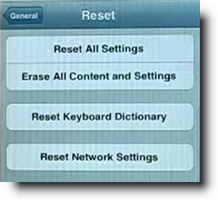
Reset iPhone. Go to Settings> General> Reset> Reset all settings. Make sure to backup your iPhone to the cloud / iTunes as this will wipe your media, music, and apps although photos will be left on the iPhone. This is a follow on to step 2 and another way you will be able to eliminate the glitch on the iPhone.
Step 4 – Press Corner Of iPhone

This one is a bit weird but it worked for me for a while and has worked successfully for other people. Squeeze the bottom right hand corner of the phone above where the speaker is.
The left Side is a mic, not a speaker, so don’t worry about that side. Hold that grip for about 20 seconds. This is done as the connector may be loose and had to be repositioned correctly. Yes, strange but most of these solutions are!
Step 5 – Clean Your iPhone

Use a tooth brush to clean the docking area where you charge your iPhone. With dirt, dust, grime, and so on it, may block the connectors working correctly and makes the phone think it is on a music dock. When you do this do it gently and get the bristles into there good.
Also if you use rubbing alcohol or acetone it will help get all the extra dirt out. As these products evaporate it will not do damage to the connectors. Do not use mineral terps when cleaning as it is oil based and will not dry!! This seems to be one of the most successful solutions. To avoid this happening in the future, its best to have a case that avoids dust and grime getting in.
Step 6 – Insert Headphones

Get your headphones and insert them into the headphone jack and then quickly pull them out. Continue this for a couple of minutes as sometimes it gets stuck in headphone mode so this normally undoes that. Also this may remove any dust or grime that may have been lodged in there.
You can also watch this video below which has a full list of fixes listed in this tutorial plus a few more that will restore sound to your iPhone!
Step 7 – Restore Your iPhone

Restore your iPhone on iTunes. Click on your iPhone icon when plugged into iTunes and go to restore. If you do this make sure your iPhone is backed up as YOU will loose all data, media, contacts, pics, and so on. This puts your iPhone back to factory settings.
This is similar to step 3 as it is a full reset of the device, this should help eliminate any glitch that have have come out in a recent update such as iOS7 or iOS8. Also when doing this step check for updates.
Step 8 – Jailbreak iPhone
Jailbreak your iPhone to find the file directories that are causing the fault. By doing this you are deleting the file that is making the iPhone think it is on a dock. You will still be able to use a music docking station etc. If you have a jail broken iPhone or willing to do it then this will be the best option for you. Very simple video and easy to follow, to jailbreak follow my simple tutorial.
Step 9 – Dry iPhone

This worked for me!! The squeezing step worked for me for a small amount of time. Not much else worked so thought I would try my own cure…. An old hair dryer!! Turn on low heat and hover over the speaker outlet for about 5 minutes.
I also did the headphone jack as well. There must of been some residual moisture build up which the hair dryer eliminated. The speaker was sputtering on and off during this time but finally came to life :). If you don’t have a hair dryer, you can also put your iPhone in dry rice while turned off. This can suck up all that unwanted moisture. Best to leave in rice for at lease 12 hours.
Step 10 – Hardware Problem

It may be a hardware problem and simply need to get a replacement through your provider who may offer insurance if chosen or apple support. This no sound and speaker is getting more known know by Apple there is a good chance you may get a replacement or a hardware fix.
Step 11 – Ultimate Destruction
If iPhone still has no sound there is always ultimate elimination… Not endorsed. See below….
**** UPDATE **** 18/03/20
Thank you everyone for such an overwhelming response! Also to those that have put up there own solutions that have worked for there iPhones. Initially when I created this website I did not envision the large response of people with the same issues. So here are some new solutions and steps that are popular on the comment feed.
iPhone No Sound Solution Step 12

As dirt and grime like to build up in the charging connectors of the iPhone it is necessary to clean it out. Similar to the step with cleaning it with a toothbrush you will be using compressed air instead. The best and easiest way you can do this is to blow air out your mouth with a good force into where the iPhone would get charged.
Do this for 1 minute to insure that it removes any dust or dirt particles. After that, plug and unplug your charger into the slot about 5-10 times.
iPhone No Sound Solution Step 13

This is similar to the step above but you will be cleaning out the headphone jack on the iPhone instead of the charging connectors. As above blow into the headphone jack for about 30 seconds to 1 minute, this should vanish any dust or dirt that is lodged in there.
Once that is done insert a ear bud/ q tip into the headphone jack and twist for about 30 seconds. That should dislodge any other dirt or grime that the blowing process may have missed.
If your iPhone X is not turning on, then you should check out my full guide here.
iPhone No Sound Solution Step 14

There have been more than a dozen comments saying that bluetooth may be interfering with the sound on the iPhone. One good method is to insure that your iPhone is not connected to any bluetooth device as it may be playing sound thru that device. Also another successful step that has been recommended is to turn off bluetooth and then turn on again.
iPhone Has No Sound Step 15
As a continuation to step 5, there have also been several reports of people who have also cleaned their iPhone with a wooden toothpick.
While a toothbrush works quite well, there is typically quite a lot of dirt still stuck in the charing port which can only be gotten out with a pointy object. Just be careful not todo any damage to your iPhone charge port. This seems to work well with older iPhone 4 and also the new iPhone 8 and iPhone X.
These are just some of the steps I have found and come up with which have shown success for iPhones with no sound.
rocketbotmom says
In regards to prior post, the volume is my ringer on my phone and all alerts.
Daisy says
Definitely STEP 4!!!!!!
Amar says
Nthinh wrks phn sounds only in siri
Val says
I have iphone 6 and upgraded to ios 9 and had major speaker problems only with the phone,the hard restart has fixed the problem. thanks
Niina says
I second this it WORKED! “Swipe from the bottom up and you have those options for flashlight, etc. Play a song from there and there is a volume bar. Turn it up. … How in the world did that bar get turned all the way down in the first place?” Hallelujah!
sdcrm says
Thank you! I did Step 5 & 6 and got my sound back!
Fee says
Thank you! Fixed in seconds!
Richard says
STep 4 good stuff
Ron says
Thanks. Variation on #4
Tried cleaning with brush but when I blew into the charging port it worked thanks
Jo says
Step 4! My aerospace engineer husband is in total disbelief. Thanks!
jass says
Got iphn 6+ Tried oll but nothing works 😭😭😭
jass says
Omg…..!!!!!! Unbelievable …step 4 workd for me…
Thnxxx alot gbu
Travis says
Haha yup switch was off ! Thank you !
binnu says
The sound on my Iphone 4 all of a sudden stopped working, the sound works fine with headphones in and i can change volume but when i unplug the headphones i get absolutely no sound from the speaker what so ever, i can’t even change the volume.
Arsh says
I have iPhone 4 my left EarPod is not working but right EarPod is working normally I have viewed all setting and I checked my headphone plugging into another phone but It works normally in another phone plz help to solve out this problem..!!
Kay says
Step 6 did it for me. Thanks a lot
Pappy Doug says
Your a genius. Step 4, 4, 4!
Regan says
Thanks, the hard reset sorted out my sound issue, Thank you.
Allie says
Done them all and still nothing 😩 Been in and out of sound for a while lately but it usually works when I put head phones in and remove them 👎🏻
Champa sharma says
Step 5 and 6 works for me great job
partho says
recently i bought a new iphone5. i cant hear any keypad sound and incoming call when my headphone is plugged in but headphone is also work other sound like you tube,video,music etc. but other person listen my conversation but i cant listening his/her voice when plugged in headphone. when plugged out the headphone everything OK. please suggest me anyone what can i do now ?
dianne says
got the sound work on my iPhone thank
Em says
Step 4 worked for me. Thanks! Unbelievable…
Nadeesha says
Dear sir, I got so upset when my phone went dumb and no sound. But your wired solution no. 4 worked. I tried other ways till resetting. Before resetting I tried your solution and amazingly it worked. Thank you so much.
JicaJuice says
I used volmaster app for 99cents and have fixed my iPad and an iPhone by simply turning up the volume in this app. After that the device works again and I can resume using the device as normally. Somehow this app fixes the bug and for a dollar it’s worth it rather than waste my time troubleshooting.
J L says
Number 4 worked for me! Never would have thought to do this, amazing help thanks.
She says
If i make videos, there is no sound. What am i gonna do?
Scott pruitt says
Has anyone tried smashing the phone into the ground??? Lol that’s the point I’m at. Crazy thing was working just this afternoon
Rhett says
Many Thanks! Should have thought of this (step 2). It worked like a charm. Thanks!@
nrajeshnadar says
Number 4 worked for me! Genius …. I went for repair shop he tried 1 hour no luck… then he said better buy other phone it cheaper..
Michel says
Sir my iPhone 6 pulse suddenly no sound incoming calls please Any suggestions
Lexie says
Hey, thanks for all the tips this is hand me down 4s and speaker sometimes don’t work
Number four worked! Thank you so much for your help!😊
Lexie says
One more thing
Step four worked three or four times while I had ear buds in cuz it doesn’t work with earbuds how do I fix this? You said it sometimes gets stuck in earphone mode how bout the opposite?
shoestorun.wordpress.com says
HIIT. Sneakers with comfortable interiors should always be purchased.
Author and talk show host Larry Elder said of goals, ‘A
goal without a plan is just a wish.
Blade says
Oh nice man you are awesome .. how strange STEP 4 worked for me as well.. that phone almost made me crazy some days it works nicely some days it just become totally silent not a single sound .. STEP 4 worked nicely, thanks a lot..
Lillia says
Step 4 strangely actually worked my together app wasn’t using any sound so I tried that it definitely worked 😃
Jeremy says
Wow!! #4 didn’t work so I got frustrated and started tweaking the phone from the opposite corners like ringing out a towel and magically the music started playing!!! Thank you VERY MUCH!!!!
Imogen Roff says
Many many thanks. Swiping up and turning up music sound worked for me. Brillllllll.
Miss L says
can some one write hear what step 4 is because im at work and computer here doesnt have sound so I cant watch u tube video
Nancy says
Miss L
#4 – This one is a bit weird but it worked for me for a while and has worked successfully for other people. Squeeze the bottom right hand corner of the phone above where the speaker is. The left Side is a mic not a speaker so don’t worry about that side. Hold that grip for about 20 seconds. This is done as the connector may be loose and had to be repositioned correctly. Yes strange but most of these solutions are.