If you have no sound on your Apple iPhone 3 / 3GS / 4 / 4S / 5 / 5S / 5C/ 6/ 6Plus/ iPhone 6s/ 6s Plus/ iPhone 7, 8, 8Plus and the iPhone X, iPhone Xs volume bar, it is unbelievably frustrating as you most probably already know.
I have been looking for cures over the web as there are many out there. Below you will find a list of all these including the one that worked for me. Also, this list is in chronological order of what seems to be most successful. It is a process of elimination but it has to be done.
The symptoms of iPhone no sound Problem/ Issues include:
– iPhone will ring but speaker will not work for anything else.
– iPhone no sound at all for calls, apps, music, etc
– iPhone no sound as stuck in headphone mode
Follow these steps and hopefully, your iPhone will be back to its prior glory.
iPhone No Sound – How To Fix & Tutorials 2020
Step 1 – Check Silent Mode Switch

Loud/ Silent switch on the exterior of the iPhone is switched to the silent mode which is orange. If so, flick the other way to loud mode. This is a step that so many people miss, but it is the simplest! Also once you have flicked the silent mode off, ensure your volume is turned up by pressing the volume buttons on the side.
Step 2 – Restart Your iPhone

To restart the iPhone, hold the power switch and home button together for 10 seconds. This will restart your iPhone, you will not lose any media, contacts, data, etc. If there is a temporary glitch on the iPhone this will eliminate that glitch. Also if there is a glitch this may help terminate a temporary glitch.
If you have an iPhone X or newer, you can simply restart the device by pressing and holding both the side button and one of the volume buttons. Once done, you’ll then be promoted to restart the iPhone. When off, click the side button to turn on again.
Step 3 – Reset iPhone Settings
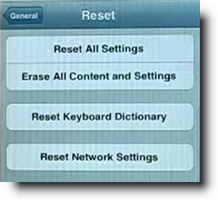
Reset iPhone. Go to Settings> General> Reset> Reset all settings. Make sure to backup your iPhone to the cloud / iTunes as this will wipe your media, music, and apps although photos will be left on the iPhone. This is a follow on to step 2 and another way you will be able to eliminate the glitch on the iPhone.
Step 4 – Press Corner Of iPhone

This one is a bit weird but it worked for me for a while and has worked successfully for other people. Squeeze the bottom right hand corner of the phone above where the speaker is.
The left Side is a mic, not a speaker, so don’t worry about that side. Hold that grip for about 20 seconds. This is done as the connector may be loose and had to be repositioned correctly. Yes, strange but most of these solutions are!
Step 5 – Clean Your iPhone

Use a tooth brush to clean the docking area where you charge your iPhone. With dirt, dust, grime, and so on it, may block the connectors working correctly and makes the phone think it is on a music dock. When you do this do it gently and get the bristles into there good.
Also if you use rubbing alcohol or acetone it will help get all the extra dirt out. As these products evaporate it will not do damage to the connectors. Do not use mineral terps when cleaning as it is oil based and will not dry!! This seems to be one of the most successful solutions. To avoid this happening in the future, its best to have a case that avoids dust and grime getting in.
Step 6 – Insert Headphones

Get your headphones and insert them into the headphone jack and then quickly pull them out. Continue this for a couple of minutes as sometimes it gets stuck in headphone mode so this normally undoes that. Also this may remove any dust or grime that may have been lodged in there.
You can also watch this video below which has a full list of fixes listed in this tutorial plus a few more that will restore sound to your iPhone!
Step 7 – Restore Your iPhone

Restore your iPhone on iTunes. Click on your iPhone icon when plugged into iTunes and go to restore. If you do this make sure your iPhone is backed up as YOU will loose all data, media, contacts, pics, and so on. This puts your iPhone back to factory settings.
This is similar to step 3 as it is a full reset of the device, this should help eliminate any glitch that have have come out in a recent update such as iOS7 or iOS8. Also when doing this step check for updates.
Step 8 – Jailbreak iPhone
Jailbreak your iPhone to find the file directories that are causing the fault. By doing this you are deleting the file that is making the iPhone think it is on a dock. You will still be able to use a music docking station etc. If you have a jail broken iPhone or willing to do it then this will be the best option for you. Very simple video and easy to follow, to jailbreak follow my simple tutorial.
Step 9 – Dry iPhone

This worked for me!! The squeezing step worked for me for a small amount of time. Not much else worked so thought I would try my own cure…. An old hair dryer!! Turn on low heat and hover over the speaker outlet for about 5 minutes.
I also did the headphone jack as well. There must of been some residual moisture build up which the hair dryer eliminated. The speaker was sputtering on and off during this time but finally came to life :). If you don’t have a hair dryer, you can also put your iPhone in dry rice while turned off. This can suck up all that unwanted moisture. Best to leave in rice for at lease 12 hours.
Step 10 – Hardware Problem

It may be a hardware problem and simply need to get a replacement through your provider who may offer insurance if chosen or apple support. This no sound and speaker is getting more known know by Apple there is a good chance you may get a replacement or a hardware fix.
Step 11 – Ultimate Destruction
If iPhone still has no sound there is always ultimate elimination… Not endorsed. See below….
**** UPDATE **** 18/03/20
Thank you everyone for such an overwhelming response! Also to those that have put up there own solutions that have worked for there iPhones. Initially when I created this website I did not envision the large response of people with the same issues. So here are some new solutions and steps that are popular on the comment feed.
iPhone No Sound Solution Step 12

As dirt and grime like to build up in the charging connectors of the iPhone it is necessary to clean it out. Similar to the step with cleaning it with a toothbrush you will be using compressed air instead. The best and easiest way you can do this is to blow air out your mouth with a good force into where the iPhone would get charged.
Do this for 1 minute to insure that it removes any dust or dirt particles. After that, plug and unplug your charger into the slot about 5-10 times.
iPhone No Sound Solution Step 13

This is similar to the step above but you will be cleaning out the headphone jack on the iPhone instead of the charging connectors. As above blow into the headphone jack for about 30 seconds to 1 minute, this should vanish any dust or dirt that is lodged in there.
Once that is done insert a ear bud/ q tip into the headphone jack and twist for about 30 seconds. That should dislodge any other dirt or grime that the blowing process may have missed.
If your iPhone X is not turning on, then you should check out my full guide here.
iPhone No Sound Solution Step 14

There have been more than a dozen comments saying that bluetooth may be interfering with the sound on the iPhone. One good method is to insure that your iPhone is not connected to any bluetooth device as it may be playing sound thru that device. Also another successful step that has been recommended is to turn off bluetooth and then turn on again.
iPhone Has No Sound Step 15
As a continuation to step 5, there have also been several reports of people who have also cleaned their iPhone with a wooden toothpick.
While a toothbrush works quite well, there is typically quite a lot of dirt still stuck in the charing port which can only be gotten out with a pointy object. Just be careful not todo any damage to your iPhone charge port. This seems to work well with older iPhone 4 and also the new iPhone 8 and iPhone X.
These are just some of the steps I have found and come up with which have shown success for iPhones with no sound.
kanupriya says
excellent web site. I am 42 year old working women. first time bought apple phone with lot of expectation in nov. 15. today morning i got shocked when there was no sound. but the problem solved after restored settings/
thank you very much
kanupriya india
jesus says
Pues yo entro a ajustes despues a sonido y bajo la barra de volumen y la subo despues empiesa a funcionar normal.
Trevor says
I have run out of ideas trying to fix my sound on my iphone 4. I have no ringing sound on a incoming call + earphone jack does not work + no volume up or down screen. I have sound though when testing ringtones ? I have replaced charging dock + speaker assembly + lcd & digitizer screen still no sound. Have tried all the other simple things also like blowing out the earphone jack….mute button off…..reset & restored the iphone……checked all settings…..etc etc. I’m starting to think it might be the logic board itself. Unless someone else has any ideas. ???????
Sara says
Had same problem. Somehow my Do Not Disturb mode got switched on. After turning it off, problem solved.
Teresa says
Thankyou for your input. Great info and a big help. A bigger pic of the outside switch would have helped as I assumed you were talking about the push buttons for volume.
Alexis says
Oh my god thank you soooo much !!!! I am a student and have to wake up early. So like everyone else I use my phone for alarms. The blow drying thingy worked soooo thank you soooo muchhhh.
Maddy says
Thank you for the tips. Everything is working fine now!!! 😃😃😃👍🏼👍🏼👍🏼
Tiffany says
I have (cdma) iphone 4. Speaker wrks fine. Music plays well. I can hear ppl on the othr end. Problem is- they can’t hear me.
They can only hear me on speakerphone. So would this be a mic problem?? Thanks for any help u can provide
Sigursteinn G Sævarsson says
That was very usefull
Jan Brunton says
THANK YOU!!!!! Mine worked with after reading Step 8. I decided to put it back in the docking station and then pulled it off. Audio came back to the phone. Cheers!
samuel says
Hey, my phone just sounds when i connect the charger and it keeps working for 2 minutes and after that it stops working. Thank you
Alex says
hi
just wanted to let every one know that I tried a few fixes and the hair dryer for 5min on low heat did the trick, I got splashed at Disneyland last nite and my phone was acting wierd, said cable no compatible when no cable in and then when I tried to pay music on my ph, YouTube etc… no sound said it was in headphone mode. so if your issues starter after some water issues. the hairdryer seems to do the trick 😄
Terry chapel says
So sick of iPhone. My first smartphone and issues upon issues. I’m going to sell at a loss and get an android
Suse says
OMG, squeezing that bottom right (looking at) corner did it!! Sound is back, however, now there is a little bitty telephone receiver with dots under it (numbers for a app phone?) up with the Bluetooth, power, battery, etc., marks . . . anyone know what this is? It, again, showed up after following the directions here to squeeze the bottom, right of the button for a few seconds to restore the sound . . . !
Fran says
https://discussions.apple.com/thread/6470684?start=0&tstart=0
I went to the above web site and saw that I had to remove the protective clear plastic covering from the top left corner of the back of iPhone 5. I kept it on since I got an Otter box cover. I didn’t even realize I had left it on. Anyways I found out sound didn’t work when I took video at a wedding and was so excited to show the bride to find out it was muted. And now the sound works. Couldn’t have been a more simple thing to do.
Josh says
I’ve got this problem whose the the “headphone” mode is still on even I’ve did all the steps even from others video methods of fixing this, but since I got hit by a wave (while fishing) Im guessing that my pins are corroded? Since all those motheds I’ve tried doesn’t work. i was wondering if there’s anyway to un-corrode the pins in the jack? Cause I’ve tried the Q tip method but doesn’t work so I’ll have to get it repaired ?
Suck my dick says
This fucking helped
Natalie says
thank you
Elham says
Setting/general/Accessibility / then off phone noise cancellation
Elham says
go setting/ general/ accessibility/then off
Phone noise cancellation
Dara Va says
Thank you
Iva says
Hi write me on my account on Instagram :jazzlyzx
I have a problem my sound on my phone doesn’t work
Saima says
My I phone have no sound call bell and msg bell
Louvins says
Thanks a million. I used the hairdyer trick & waited for sometime & it worked fine.
Great idea.
Thanks
Louvina
Kylo Austin Camrson says
IT DOES NOT HELPPPPPPPPPPP
isaac mensah says
my iphone 4 rings when someone is calling but when i play music, no sound comes from that side….please help me out
Erik makauskas says
Thank you so much. On my way to work my sound was working through Bluetooth but on the way home it stopped for no reason. My mom googled the problem and came across this website and restarting the phone fixed it. It’s BS that this crap even happens that often that there needs to be a website about it. I can’t wait until I can leave iPhone and go to Samsung. Because if none of this worked I would take it to my local Apple Store where they would say there was water damage when there is no possible way of being water damage and I would have to pay $80 for a new phone… Again. So thank you… You are a saint
Seri says
Wow – brand new phone and problems already! From your suggestion I tried the blow dryer and it worked! Not sure how it may have gotten dust or whatever like that when it hasn’t been taken out of the box until now. Really appreciate this web site – thank you.
Badboikimu says
No.4 very helpful at first I thought my phone is not gonna come back to sound
Arthur Herbieto Medellin II says
my iphone 4s dont have sound call , test alert , music and etc. can anyone help me ?
Sonny says
Thanks for your great ideas, I used step #4, and its worked
junior force says
Thanks alot
Namrata Surve says
I did all the steps till steps 6, to my wonder ,,,i could listen to music & videoes now.These steps if followed in sequence, is of great help.!thanks
PirKo Kurdish says
Many thanks to you my friend I tried all the steps and boom something worked when I volumes up my phone the volume bar came up and the headphone mode was gone …..many thanks you helped me saving 20$ 😂😂😂 👏👏👏👏🙏🙏🙏🙏
Tyggs says
Tried all the steps and nothing happened, then I stuck the head of a pin in the ear jack and dock (wiggled it around a bit) and voilà–sound! Hope I haven’t ruined anything…
Xan Agdipa says
Mine still wont work im getting hopeless…it does work if there is an incoming call but other than that nothing..i tried every single method mentioned on top and nothing works. Apple Iphone 6s sucks…i shouldve got a samsung instead…😭😭😭😭
TAG2110 says
OMG, Thank you for the great tips to fix the sound problems with Iphones. I’ve had an iphone for 4S for 6 years and with no problems except with a few gliches nothing that turning it off and on again hasn’t fixed. After waking up to my alarm with no sound, Then receiving and making calls where nobody could hear me, no sound on anything, I thought this is strange so I tried everything i knew about the phone but to no avail, I’ve stressed for the last 3 days and no website could give me the steps you have provided. I used step 4 pressing the right hand corner together and wahla, sound has returned!! Yes I was not willing to part with my 4S just yet as its one of the best Iphones that has ever been released. My 3 kids all have Apple Iphone 6’s and have had probelms and new replacement phones. Thank you so much for your outstanding knowledge, no other website gave me this kind of info. Your a gem, THANK YOU, THANK YOU, THANK YOU!!!
Fari says
Thank you so much, the hair dryer method worked for me. It was like a miracle!
Anne says
I watched your video and I have an I Phone 6. I swiped up from the bottom where the airplane mode and air drop etc is and realized that the music volume was turned off. I turned it up again and the video sound now works,
Muhammad says
No sounds step 6 is worked on mine
I have no sound and it said always headphone if I turned on my sound,
Big thx for this site 🙂