If you have no sound on your Apple iPhone 3 / 3GS / 4 / 4S / 5 / 5S / 5C/ 6/ 6Plus/ iPhone 6s/ 6s Plus/ iPhone 7, 8, 8Plus and the iPhone X, iPhone Xs volume bar, it is unbelievably frustrating as you most probably already know.
I have been looking for cures over the web as there are many out there. Below you will find a list of all these including the one that worked for me. Also, this list is in chronological order of what seems to be most successful. It is a process of elimination but it has to be done.
The symptoms of iPhone no sound Problem/ Issues include:
– iPhone will ring but speaker will not work for anything else.
– iPhone no sound at all for calls, apps, music, etc
– iPhone no sound as stuck in headphone mode
Follow these steps and hopefully, your iPhone will be back to its prior glory.
iPhone No Sound – How To Fix & Tutorials 2020
Step 1 – Check Silent Mode Switch

Loud/ Silent switch on the exterior of the iPhone is switched to the silent mode which is orange. If so, flick the other way to loud mode. This is a step that so many people miss, but it is the simplest! Also once you have flicked the silent mode off, ensure your volume is turned up by pressing the volume buttons on the side.
Step 2 – Restart Your iPhone

To restart the iPhone, hold the power switch and home button together for 10 seconds. This will restart your iPhone, you will not lose any media, contacts, data, etc. If there is a temporary glitch on the iPhone this will eliminate that glitch. Also if there is a glitch this may help terminate a temporary glitch.
If you have an iPhone X or newer, you can simply restart the device by pressing and holding both the side button and one of the volume buttons. Once done, you’ll then be promoted to restart the iPhone. When off, click the side button to turn on again.
Step 3 – Reset iPhone Settings
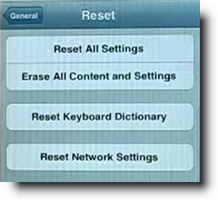
Reset iPhone. Go to Settings> General> Reset> Reset all settings. Make sure to backup your iPhone to the cloud / iTunes as this will wipe your media, music, and apps although photos will be left on the iPhone. This is a follow on to step 2 and another way you will be able to eliminate the glitch on the iPhone.
Step 4 – Press Corner Of iPhone

This one is a bit weird but it worked for me for a while and has worked successfully for other people. Squeeze the bottom right hand corner of the phone above where the speaker is.
The left Side is a mic, not a speaker, so don’t worry about that side. Hold that grip for about 20 seconds. This is done as the connector may be loose and had to be repositioned correctly. Yes, strange but most of these solutions are!
Step 5 – Clean Your iPhone

Use a tooth brush to clean the docking area where you charge your iPhone. With dirt, dust, grime, and so on it, may block the connectors working correctly and makes the phone think it is on a music dock. When you do this do it gently and get the bristles into there good.
Also if you use rubbing alcohol or acetone it will help get all the extra dirt out. As these products evaporate it will not do damage to the connectors. Do not use mineral terps when cleaning as it is oil based and will not dry!! This seems to be one of the most successful solutions. To avoid this happening in the future, its best to have a case that avoids dust and grime getting in.
Step 6 – Insert Headphones

Get your headphones and insert them into the headphone jack and then quickly pull them out. Continue this for a couple of minutes as sometimes it gets stuck in headphone mode so this normally undoes that. Also this may remove any dust or grime that may have been lodged in there.
You can also watch this video below which has a full list of fixes listed in this tutorial plus a few more that will restore sound to your iPhone!
Step 7 – Restore Your iPhone

Restore your iPhone on iTunes. Click on your iPhone icon when plugged into iTunes and go to restore. If you do this make sure your iPhone is backed up as YOU will loose all data, media, contacts, pics, and so on. This puts your iPhone back to factory settings.
This is similar to step 3 as it is a full reset of the device, this should help eliminate any glitch that have have come out in a recent update such as iOS7 or iOS8. Also when doing this step check for updates.
Step 8 – Jailbreak iPhone
Jailbreak your iPhone to find the file directories that are causing the fault. By doing this you are deleting the file that is making the iPhone think it is on a dock. You will still be able to use a music docking station etc. If you have a jail broken iPhone or willing to do it then this will be the best option for you. Very simple video and easy to follow, to jailbreak follow my simple tutorial.
Step 9 – Dry iPhone

This worked for me!! The squeezing step worked for me for a small amount of time. Not much else worked so thought I would try my own cure…. An old hair dryer!! Turn on low heat and hover over the speaker outlet for about 5 minutes.
I also did the headphone jack as well. There must of been some residual moisture build up which the hair dryer eliminated. The speaker was sputtering on and off during this time but finally came to life :). If you don’t have a hair dryer, you can also put your iPhone in dry rice while turned off. This can suck up all that unwanted moisture. Best to leave in rice for at lease 12 hours.
Step 10 – Hardware Problem

It may be a hardware problem and simply need to get a replacement through your provider who may offer insurance if chosen or apple support. This no sound and speaker is getting more known know by Apple there is a good chance you may get a replacement or a hardware fix.
Step 11 – Ultimate Destruction
If iPhone still has no sound there is always ultimate elimination… Not endorsed. See below….
**** UPDATE **** 18/03/20
Thank you everyone for such an overwhelming response! Also to those that have put up there own solutions that have worked for there iPhones. Initially when I created this website I did not envision the large response of people with the same issues. So here are some new solutions and steps that are popular on the comment feed.
iPhone No Sound Solution Step 12

As dirt and grime like to build up in the charging connectors of the iPhone it is necessary to clean it out. Similar to the step with cleaning it with a toothbrush you will be using compressed air instead. The best and easiest way you can do this is to blow air out your mouth with a good force into where the iPhone would get charged.
Do this for 1 minute to insure that it removes any dust or dirt particles. After that, plug and unplug your charger into the slot about 5-10 times.
iPhone No Sound Solution Step 13

This is similar to the step above but you will be cleaning out the headphone jack on the iPhone instead of the charging connectors. As above blow into the headphone jack for about 30 seconds to 1 minute, this should vanish any dust or dirt that is lodged in there.
Once that is done insert a ear bud/ q tip into the headphone jack and twist for about 30 seconds. That should dislodge any other dirt or grime that the blowing process may have missed.
If your iPhone X is not turning on, then you should check out my full guide here.
iPhone No Sound Solution Step 14

There have been more than a dozen comments saying that bluetooth may be interfering with the sound on the iPhone. One good method is to insure that your iPhone is not connected to any bluetooth device as it may be playing sound thru that device. Also another successful step that has been recommended is to turn off bluetooth and then turn on again.
iPhone Has No Sound Step 15
As a continuation to step 5, there have also been several reports of people who have also cleaned their iPhone with a wooden toothpick.
While a toothbrush works quite well, there is typically quite a lot of dirt still stuck in the charing port which can only be gotten out with a pointy object. Just be careful not todo any damage to your iPhone charge port. This seems to work well with older iPhone 4 and also the new iPhone 8 and iPhone X.
These are just some of the steps I have found and come up with which have shown success for iPhones with no sound.
Autoken says
Step 8 WORKS !!!
You are a Legend.
My iPhone had been struck with no sound for a month.
Almost gave up until I found this site.
Millions Thanks
Vikrant says
Earlier when i was on 5.1.1 i had this issue and step 8 worked for me but now i am on 6.1.2 and nothing seems to be working for please help me out really frustrated.
Chuck says
Step 11 worked for me all 4 times so far. This is my 4th iPhone in 2 months!!!! Definitely follow directions for step 11, you’ll be so much happier !!!!!
Kayla says
Hair dryer worked for me!!?
Thankyou
J Way says
Thank you! Did #4, squeezing bottom rt corner. That did the trick!!
Helen brown says
Delighted,
The hairdryer really did work – you are a genius!
Thank you
hadi says
i have iphone4 no sound on call
in voice memos i hear sound ipod work ok
only during in call no sound in speaker no sound in earphone no sound in hendsfree
no sound with bluetooth headset
no sound with wires headset
when i warp mainboard sound is ok
help please
help please
Stephanie says
Step 4 worked for me. Tried everything else. Thank you
Jennifer says
Trick 6 works for me 🙂
Gian says
Please help none of the steps work apart from 11 lol and trading with new, I managed to get them working but you have to blow/suck the speakers for it to work have you got any suggestions what to do 🙂
Pamela says
On my 2nd iPhone 5! One month later, NO SOUND… Beauty of it all, Apple wants me to pay to fix their problem…consumer gouging? I think so! Want to do something about it? Contact me!!
zenith says
Hi All,
I have been searching and haven’t had much luck finding my problem…
I have a iPhone 4 running the latest IOS 6 update 6.0.1 and it seems to lost all the sound…
There are no clicks or beeps when typing, no message/alert tones, and the volume buttons on the side don’t raise/lower the volume. I notice there is no sound options when watching a clip on you tube either, or no playing music too. But when it rings it plays its ringtone fine.
I have check the sounds setting and they are set correctly… I don’t get sound when I select a tone in the settings area, Ringtone works fine again….
I can play music when the headphones are plugged in and I can lower/raise the volume fine…
Things that I have tried so far…
Blown/removed all the dust and lint from the headphone jack and charge/dock connector. Cleaned these points with Isopropyl Alcohol.
Plugged and removed headphone and charging cable multiple times.
Tissue in the headphone jack to remove any moisture
Hard Restart
squeezed the lower right corner
Anyone have any ideas?
Embla says
Ive had my Iphone 4s for about two weeks and now the sound doesnt work. The ringtone works fine and when I have the headphones in it works fine but when I take them out no sound comes out, no keyboard clicks or anything and the volume buttons on the side dont work… Ive tried all of these exept jailbreaking and contacting apple support because they might charge me for it and I want to see what I can do first. Any suggestions?
Embla says
There was no sound on my iphone 4s and then I accidentally dropped it and everything went back to normal… weird.
Danielle says
I tried all of those things. I put it in the freezer, I used an airduster, I used a q-tip with rubbing alcohol to clean the headphone jack and the DC jack. Nothing worked. Finally, as a last resort, I took out my vacuum and used the hose to clean out both jacks and that worked for me!
Franck says
Danielle thanks you it work whit the vaccume. Yahoooo in very happy
patsy says
canned air to clean your computer work on my phone!!
Alexandra says
I just dropped my phone into water and the first thing I did was look up ways to fix the sound.. Number nine is my hero!
ABCGREE says
Very interesting. I tried everything on the list except jailbreak. I cleaned the jack and docking site with cotton-tip socked with electric contact cleaner, did not work.
The trick worked for me is that i then use scotch tape to stick away the dirts in the docking outlet. And then use 100% ethanol socked cotton. and blow right away. I can see liquid ethanol blowing out. Maybe wipe is not enough to get rid of the moisture. 100% ethanol will suck out the moisture and then evapovate.
anyway this works for me.
zhiar says
Million thanks for for u …. step 5 & 9 it worked for my iphone
Jackie says
Brill, thanks a million. step 2 worked for me.
Kutty says
Step 4 really worked in my case,thank you so much for this wonderful post.
Sanket says
Step # 5 worked. Thanks a lot…
Izzy says
Thanks soooo much #5 and #9 did the trick
Brandon says
I had that problem i tried everything but sometimes you have to check inside the dock connection…..i had a lot of crap in there that it was as big as 2ants. U have to check correctly and so i used tiny scissors to takeit all outbutbe careful not to mess up the connection cables in there…overall i’m happy c:
Jesse says
# 4 plus blew in speaker worked like a charm! Thanks!!!
draday says
wow #4 ended weeks of fustration… thanks … u da man!!!!!!
Katharine Barnett says
I have a file called com.apple.iap2d.plist too. I have deleted the com.apple.iapd.plist file but there is still not sound. Should I delete the iap2d file? Please help. Thanks
TheErhan000 says
Why so difficult? This is a lot easier 😀
Mable says
Take an extra half hour to look. Ontario (ONT) Atlanta (ATL) 258 158.
Is your last minute travel always more expensive than
a well-planned one.
Dawid Poland says
Hi, thanks !!
Step 8 working!!!
i os 6.0
iphone 3gs 32gb
Carlos Duarte says
Awesome, I was intermittent speaker audio used step 9 and it worked. Had this problem since IOS 5 and upgraded to 6.1.3 yesterday and after using the hair drier on the speakers for a few minutes it worked. The heat probably re-solder some of the internal components or got rid of some dirt. Bottom line it works like new now!
Mike says
Thank you for your information. I used a can of compressed air cleaning the speaker, docking station and ear piece socket. Worked like a charm!
Ruth says
Thank you thank you – step one worked like a charm.
Louis says
It’s fuckwits like you that make my job hard. Jail breaking your phone voids your warranty. Putting any liquid near the dock can liquid damage it causing the warranty to be voided. Leave it to properly trained professionals to verify what the actual issue is whether it is a software or hardware issue.
Billy says
Well make the things work in the first place!!! Had my iPhone 5 for less than a month and the speakers died. Drive an hour to the apple store, run a bit late for my appointment and nobody can help me. I love it, but come on this is a £530 phone. I shouldn’t be having this hassle!!!!
Jeroen says
Dropped my 4S in the bathtub while busy with my 3 year old son, because the case is so slick it fell out of my pocket. Took it out immediately and dried it with a towel. The phone was showing lot’s of weird symptoms.
Later when I had more time I dried the phone with a hair dryer, almost everything worked again, but not the speaker for music, and the + & – volume buttons didn’t give an indication bar. After that I cleaned the connector and headphone socket with a toothbrush soaked in alcohol, the problem was still there. Step 2, reset, fixed the phone, everything works like it should, for the moment.
Thanks for this website!. I already tried to open the case but I didn’t have such a small screwdriver (pentalope shape?). I hope the hair dryer took away all the water inside.
Goldie says
Have been going crazy for weeks. STEP 4 worked !
I am so surprised. Thank you so so much!
Anneka says
I tried a few of these things but I actually put mine in a dock in station for a couple of mins and when I took it off it was working again! X
Emma says
I did a software update that seemed to solve my sound issues 🙂